Lantern MCP for Claude: How It Works
Learn how to use Lantern MCP with Claude to analyze AI search visibility, identify citation opportunities, and turn marketing intelligence into actionable insights.
On this page
On this page
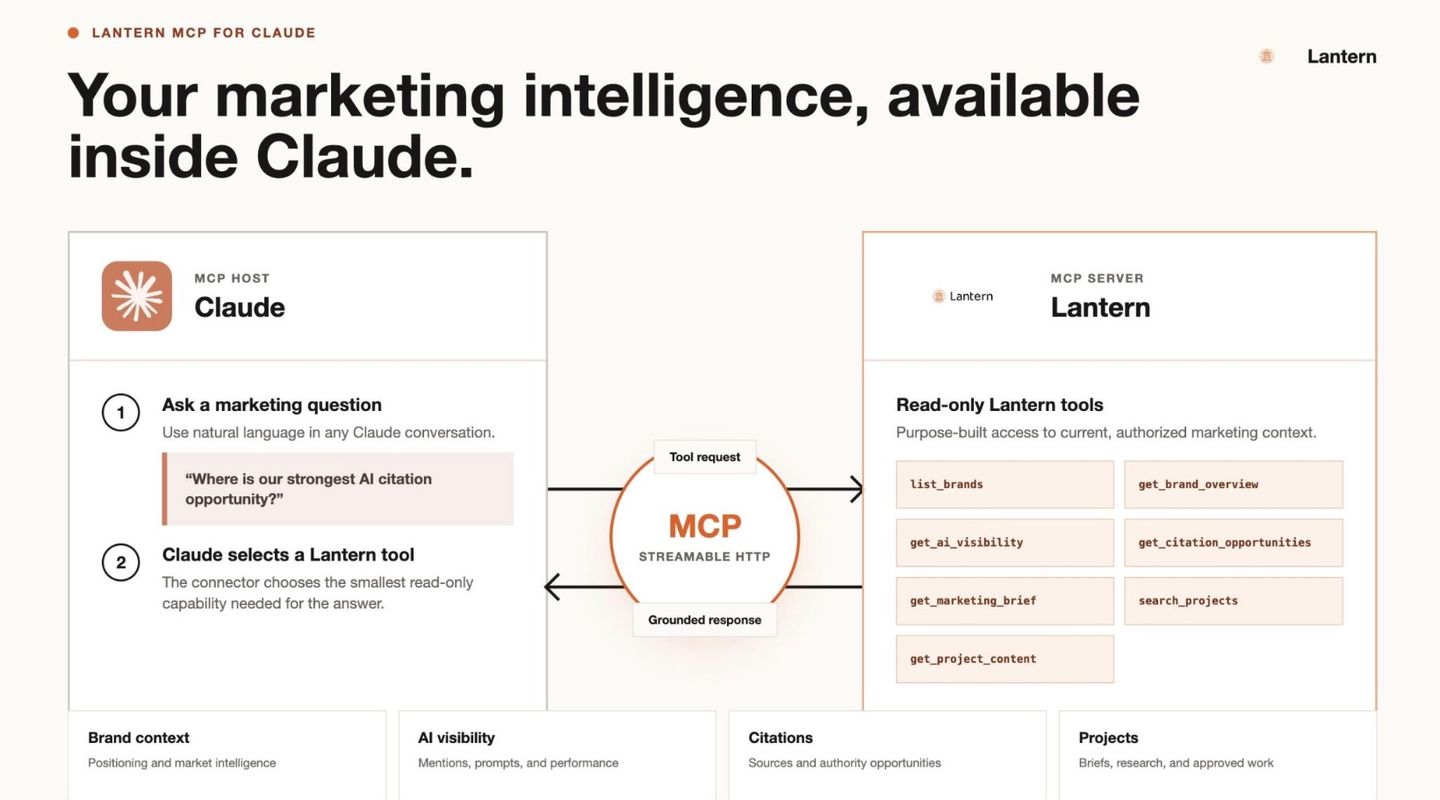
Connecting Lantern MCP to Claude gives marketing teams a more direct way to work with the intelligence already available in Lantern. Within a Claude conversation, teams can examine AI search visibility trends, assess citation opportunities, and review relevant brand and project information. This guide covers setup, practical workflows, and best practices for using the integration.
1. Check Lantern Account Access and Claude Connector Availability
Before connecting Lantern to Claude, users need an active Lantern account, access to at least one brand or project, and a Claude plan or workspace that supports connectors.
To check availability, open Claude’s Settings → Connectors and look for Lantern. If Lantern isn’t listed, check whether the Claude workspace supports custom connectors and whether an organization administrator needs to enable them.
2. Connect Lantern Through Claude’s Connector Settings
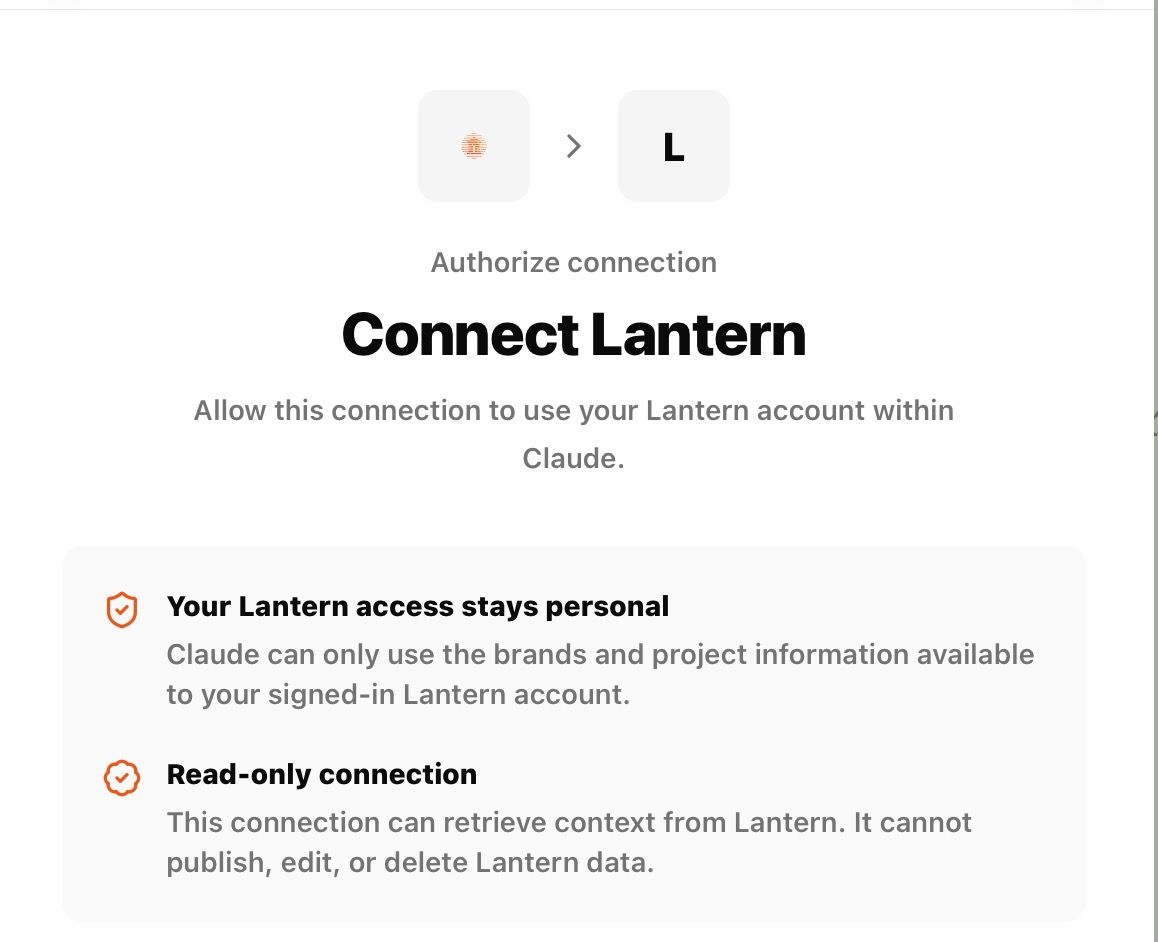
In Claude, open Customize → Connectors and search for Lantern. If it appears in the directory, select Connect, sign in to Lantern, review the authorization details, and select Allow connection to complete the setup.
Add Lantern as a Custom Connector
If Lantern is not available in Claude’s connector directory, users can add it as a custom connector. The setup process differs for Claude Pro or Max and Claude Team or Enterprise.
Use the following Lantern MCP configuration when adding the connector:
| Setting | Lantern configuration |
|---|---|
| Server URL | https://api.asklantern.com/mcp |
| Authentication | Always required |
| OAuth client | Use your own OAuth client |
| Client ID | 80913b5b-a933-498c-9dc6-dad08ca66a8b |
| Client Secret | Leave blank |
| Transport | Streamable HTTP |
For Claude Team and Enterprise accounts, an organization owner must first add Lantern at the organization level. Each team member must then connect their own Lantern account individually.
Claude Pro or Max
Claude Pro and Max users can add Lantern as a custom connector using this server URL:
https://api.asklantern.com/mcp
- In Claude, open Customize → Connectors.
- Select Add custom connector.
- Enter the Lantern server URL listed in the table above.
- Open Advanced settings and set authentication to Always required.
- Under OAuth client, select Use your own OAuth client.
- Enter the Client ID from the table. Leave the Client Secret blank.
- Keep Streamable HTTP selected and select Add.
- Sign in to Lantern and select Allow connection to authorize access.
Claude Team or Enterprise
An organization owner must first add the connector for the workspace.
- Open Organization Settings → Connectors.
- Select Add → Custom.
- Enter the Lantern server URL and OAuth settings listed in the table.
- Save the connector for the organization.
- Each member opens Customize → Connectors, finds Lantern, and connects their own Lantern account.
- Each member signs in and authorizes access.
Note: Check the current configuration against the official Lantern MCP documentation before authorizing the connection, particularly if Claude’s setup screens differ.
3. Verify Your Lantern MCP Connection.
After authorization, open the relevant Claude conversation and select + → Connectors → Lantern to enable the integration.
To confirm that the connection works, ask Claude to list the Lantern brands it can access.
Example prompt: “List my Lantern brands and give me a short description of each one.”
Check that the expected brands appear in the response. If multiple brands are available, specify the relevant brand in subsequent requests.
Start with one brand and one clear reporting objective. This makes it easier to evaluate whether the retrieved information answers the intended question before expanding the analysis to other brands or objectives.
Lantern Claude MCP for Marketing Intelligence
With the connection in place, teams can use Lantern data in Claude to support four marketing workflows.
Understand Brand Context
Claude can retrieve relevant brand information from Lantern to help teams understand how their brand is positioned. This context can inform marketing decisions and help keep recommendations aligned with the brand.
Analyze AI Search Visibility
Claude can help teams understand how their brand appears across AI-generated answers by summarizing visibility data available in Lantern. Teams can review brand mentions, citation patterns, and competitor performance to see where they are visible and where gaps remain.
Prioritize AI Citation Opportunities
Where should a content team focus its limited time? Claude can prioritize a brand’s citation opportunities by likely impact and explain the reasoning behind its recommendations. It can also group opportunities into strategic priorities to monitor.
Review Existing Project Work Before Planning
Before creating a new brief or strategy, teams can ask Claude to search Lantern project items by topic and retrieve relevant work. This helps surface previous decisions and existing direction before new work begins.
Best Practices for Better Lantern MCP Results
Clear requests help Claude retrieve relevant information and produce more useful responses. Effective prompts should:
- Name the brand when working across multiple brands.
- Define the timeframe for visibility analysis.
- Identify the audience, such as leadership, content teams, or clients.
- Separate evidence from recommendations by asking Claude to distinguish Lantern data from its own suggestions.
- Specify the desired output, such as a summary, prioritized list, meeting agenda, or 30-day plan.
A Practical Next Step
Teams ready to connect their marketing intelligence with Claude can explore the integration and get started here